List My Shopping
LMS (List My Shopping) is a popular, zero-subscription mobile application designed to streamline your daily shopping trips through an intuitive, simple interface. Never forget an item, double-back for forgotten brands, or mix up store lists again!
Android
Phones & TabletsiOS / iPadOS
iPhone & iPad100% Free
No SubscriptionsMulti-Use
Custom ChecklistsContents
Overview
List My Shopping (LMS) is a user-friendly mobile application available on iOS (iPhone, iPad, iPod touch) and Android (Phones & Tablets). The application features a simple, clean, intuitive interface designed to elevate and simplify your day-to-day store visits.
| Default Item | Category Type | Description & Management |
|---|---|---|
| Milk | Dairy | Essential daily necessity pre-populated on fresh installation. |
| Eggs | Dairy & Refrigerated | Essential daily necessity pre-populated on fresh installation. |
| Bread | Bakery | Essential daily necessity pre-populated on fresh installation. |
Basic Usage
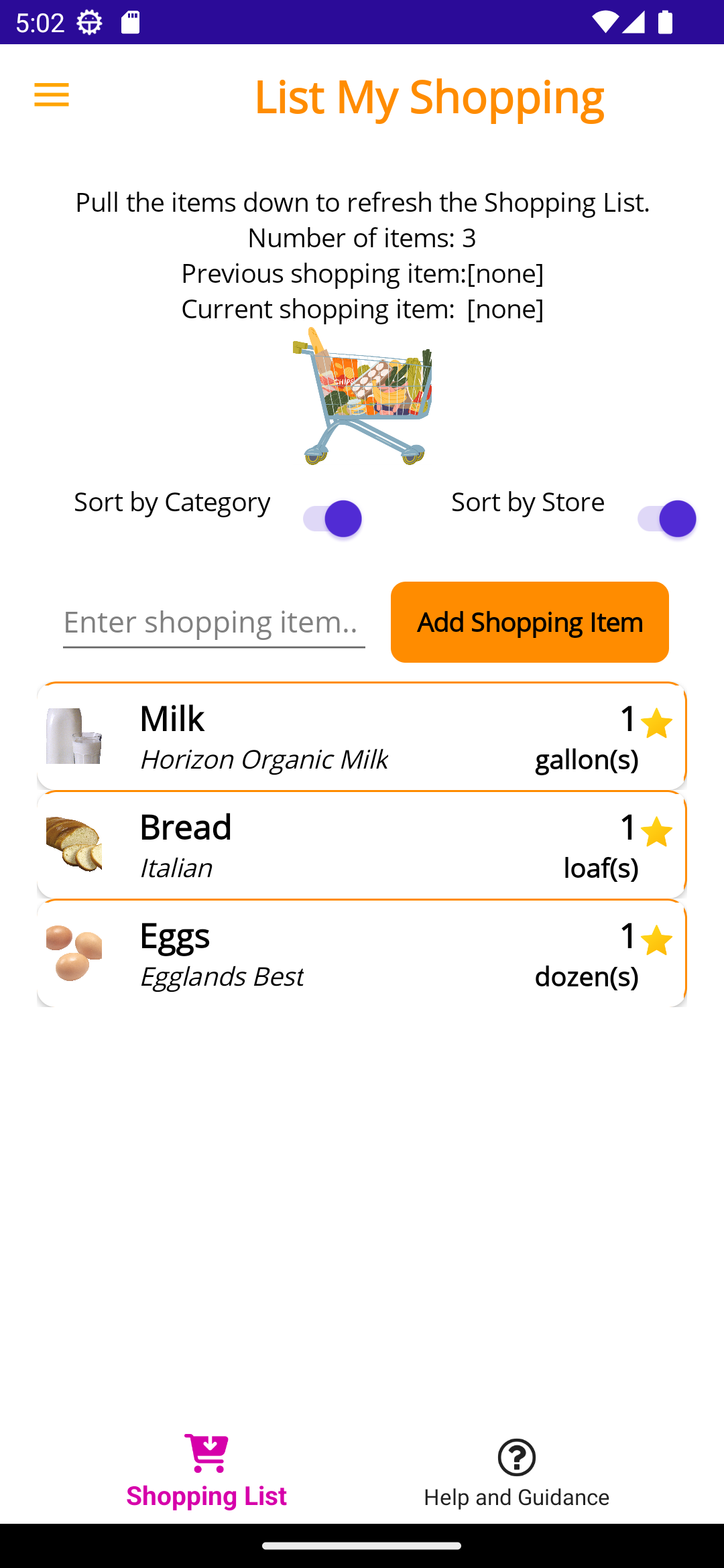
When launching LMS for the first time, default daily essential items (Milk, Eggs, Bread) will appear in your list. To remove any default item, swipe right-to-left across the entry and tap Remove.
Create lists customized to specific stores—such as one for "Target" and another for "Walmart"—or organize non-store checklists, such as camping supplies or medical questions for your doctor!
Adding Items
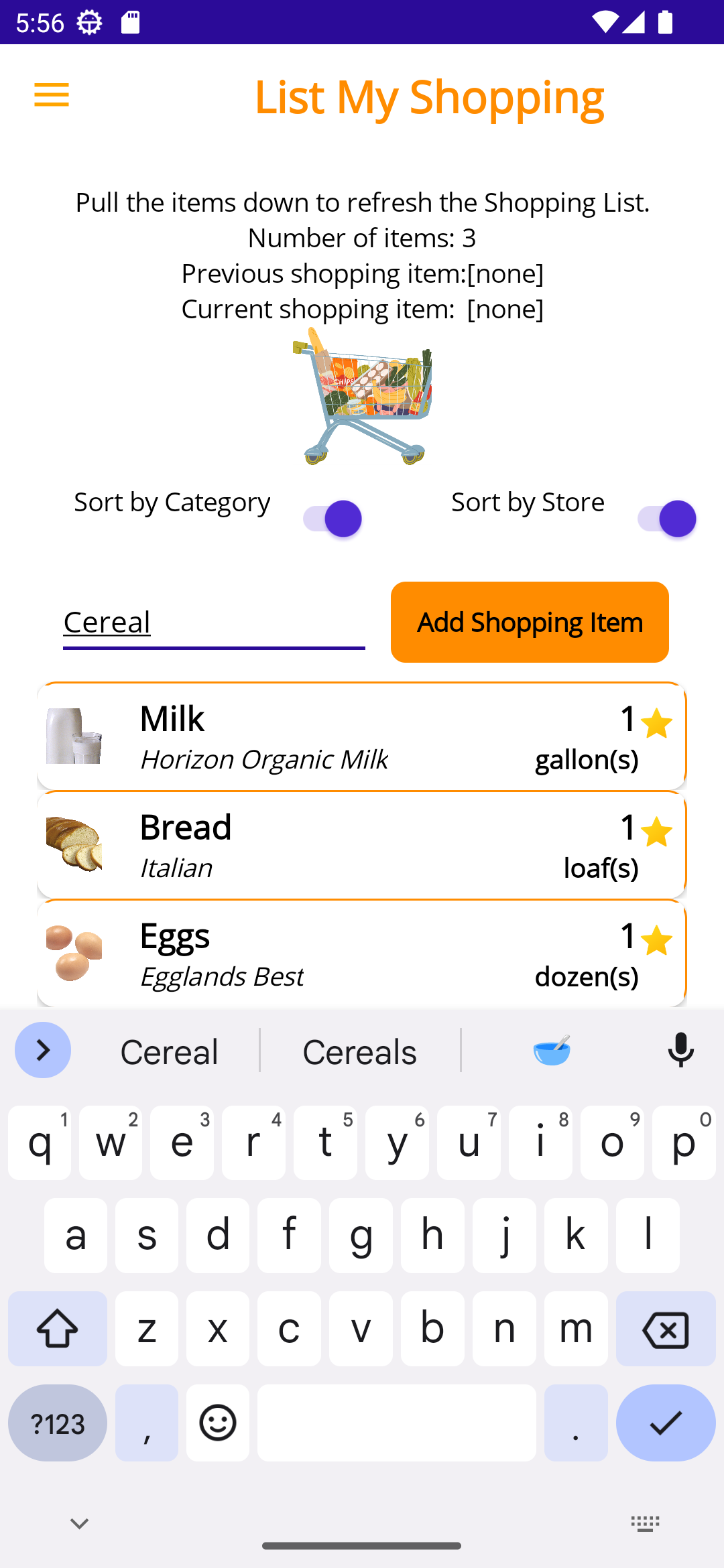
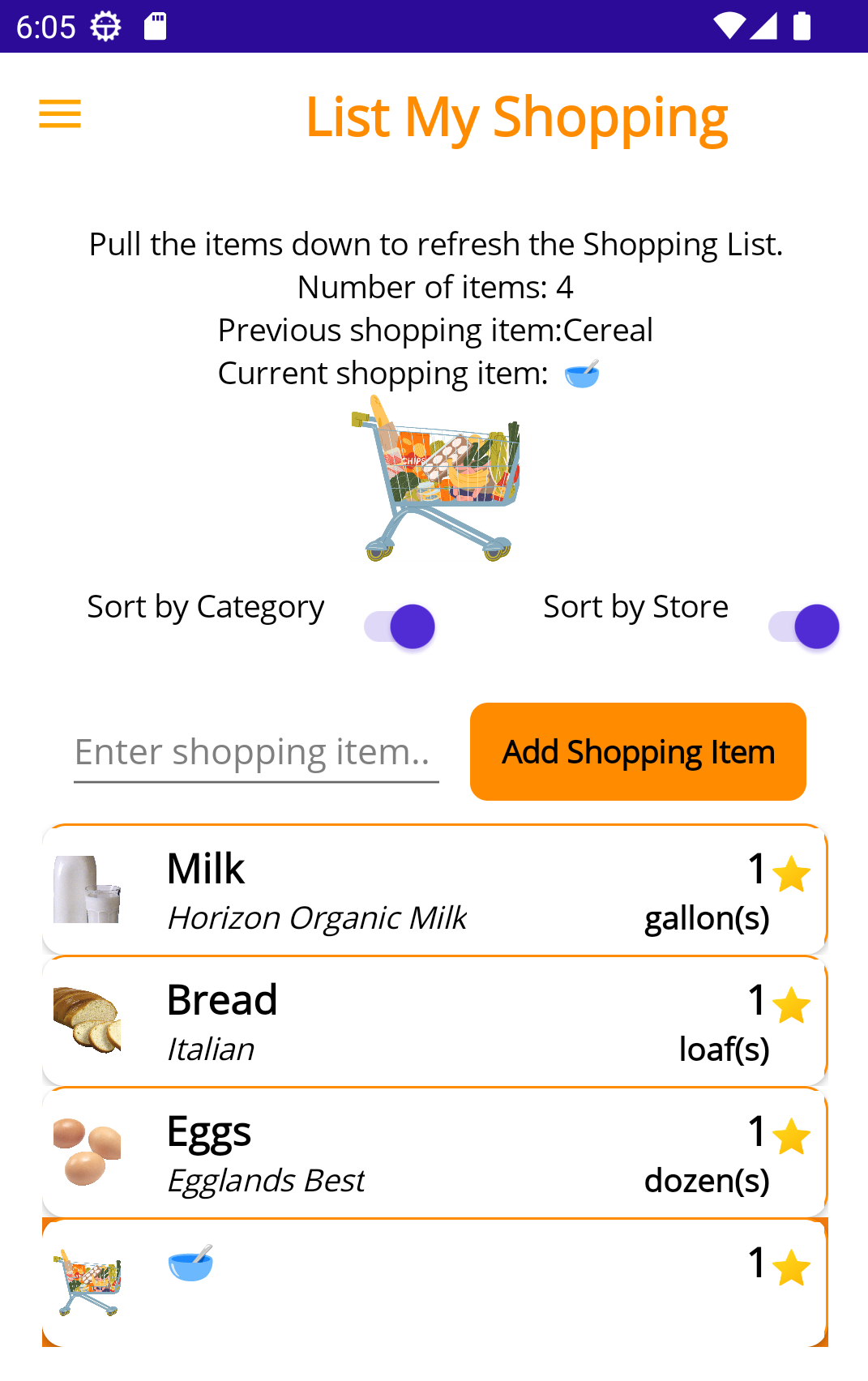
Adding items to your active list is quick and straightforward. Type the name of the item in the top text entry field (e.g., "Cereal") and select Add Shopping Item.
Adding Item Details
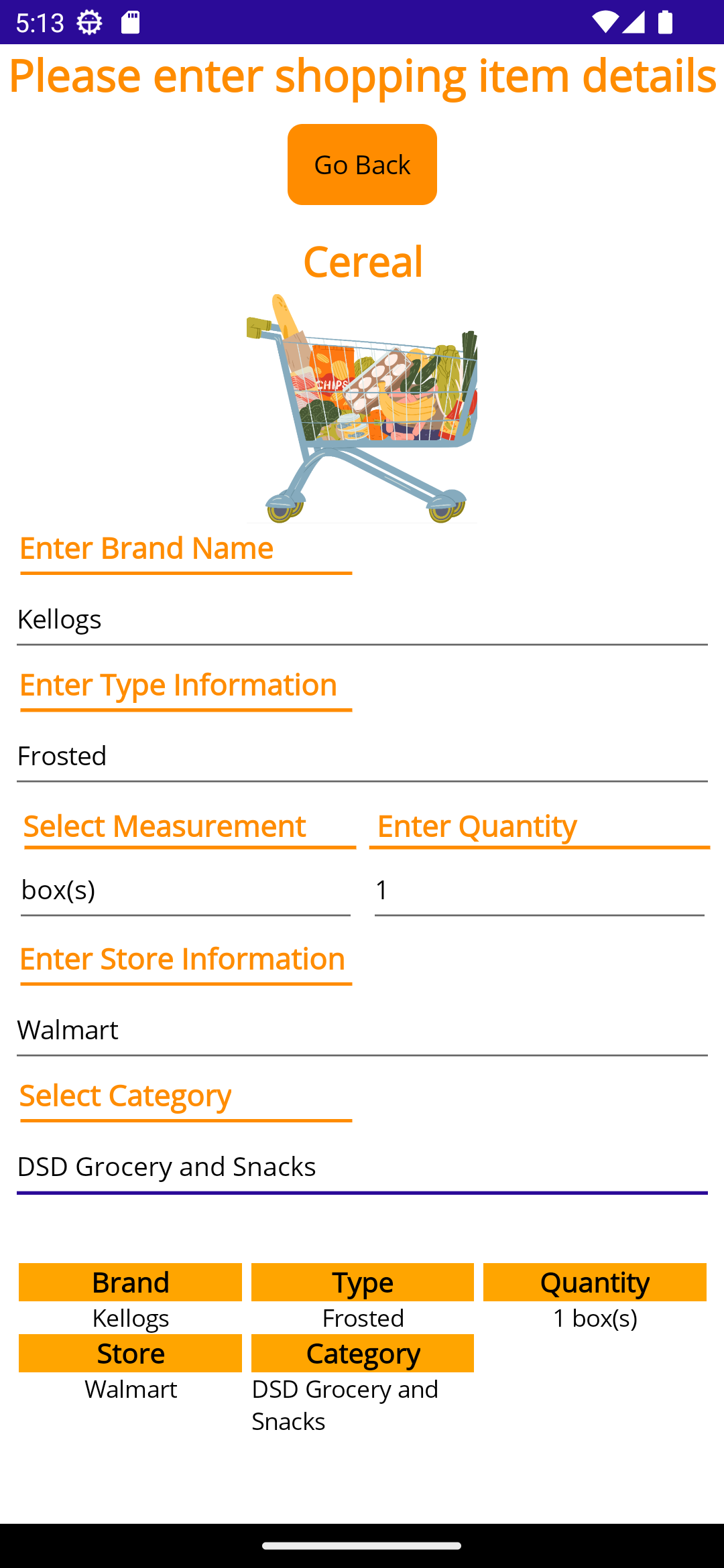
Specify details like manufacturer brand (e.g., Kellogg's, Pepsi), unit measurements, store locations, or product characteristics (e.g., Frosted Flakes, Diet Fanta) to ensure you pick the exact item off the shelf.
Cross-Off Purchased Items
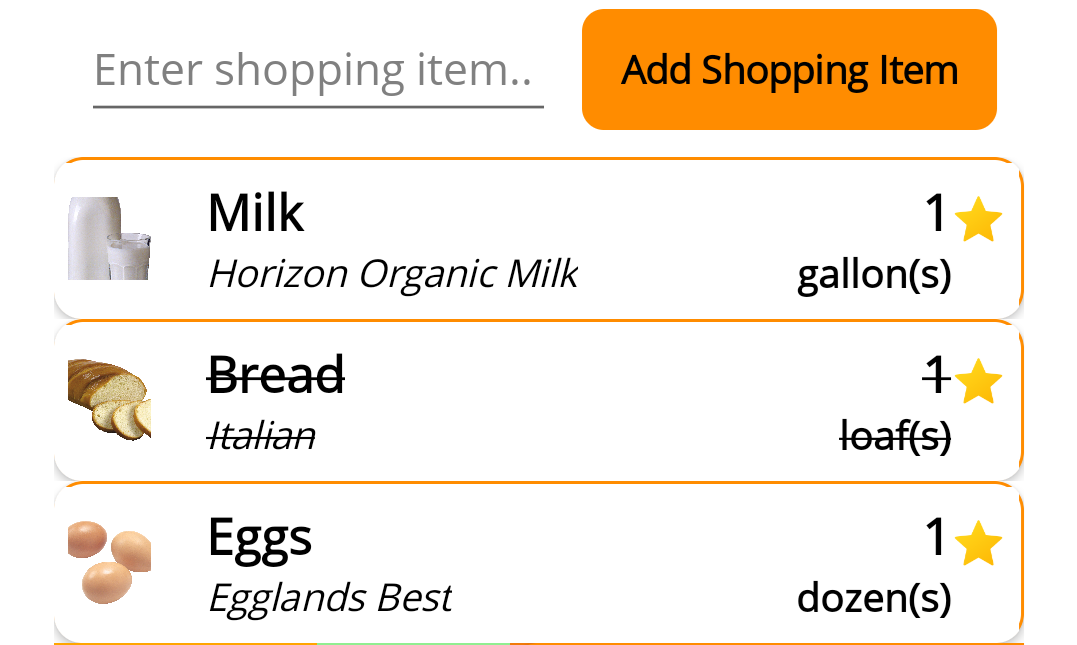
While navigating the store, tap any item once to mark it as purchased. A strike-through horizontal line will immediately appear over the item name. Tapping the item again toggles it back to an un-purchased state.
Advanced Features
Saving Items
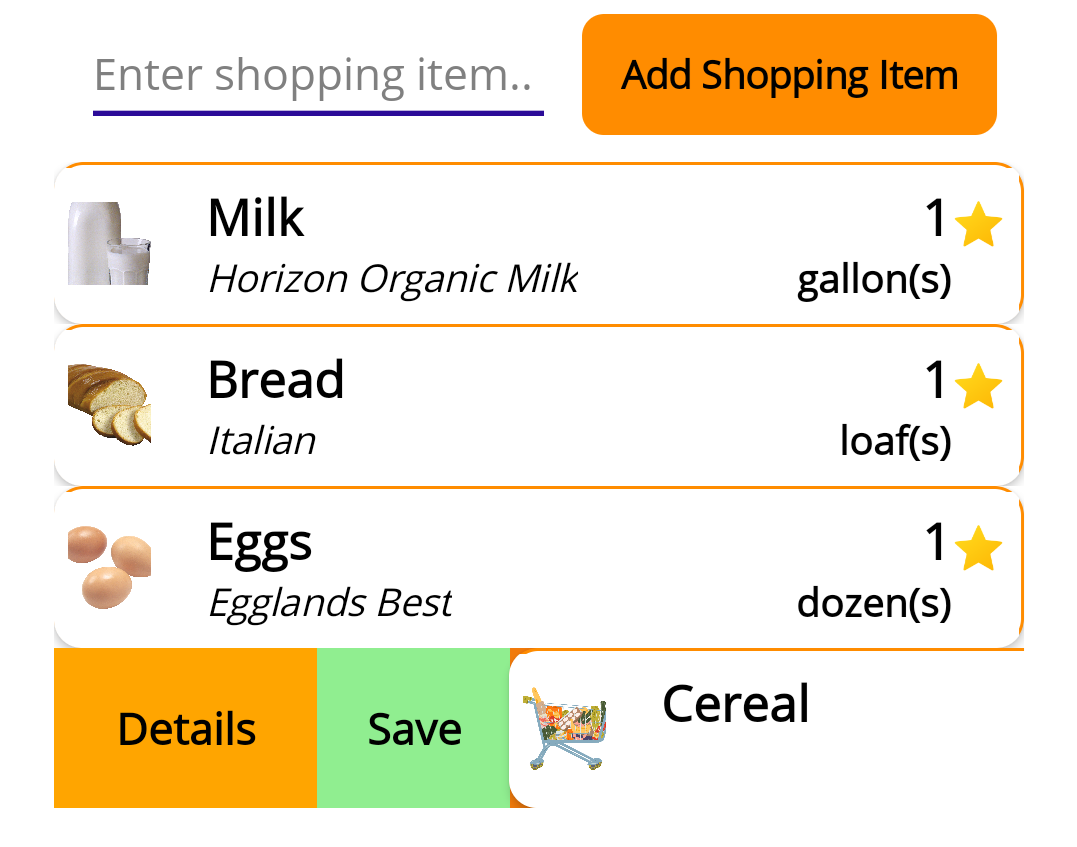
New items are added temporarily for your current trip. To save an item permanently in local storage for future reuse, swipe left-to-right on the item entry in the main list and tap Save.
Favorites
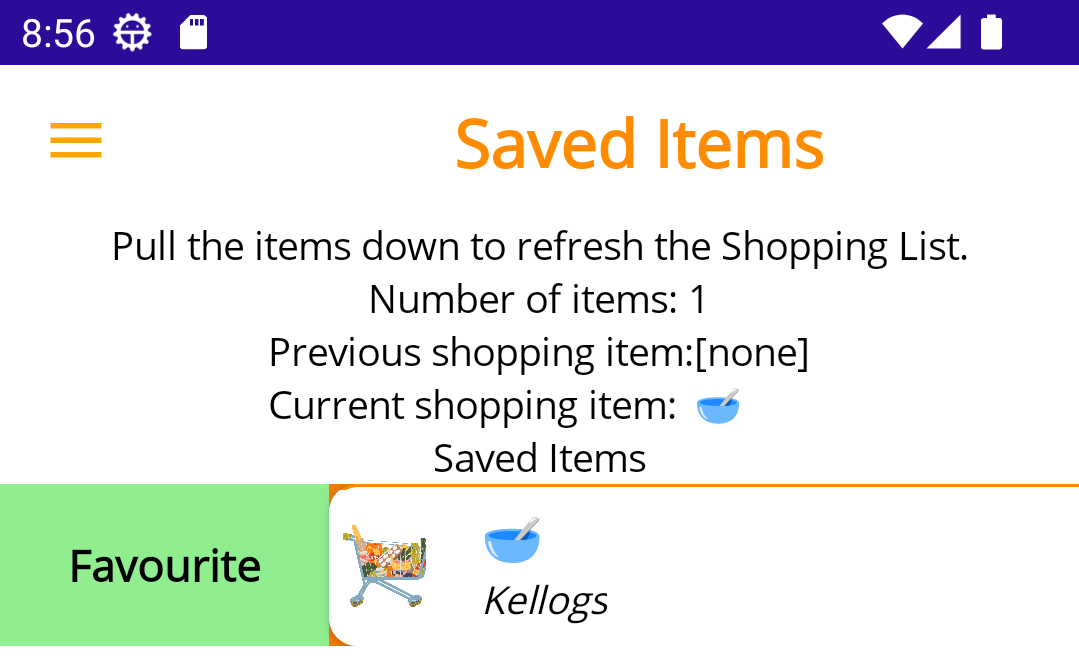
Saved items stay in device memory even when the app is closed. To display saved items back on your active shopping screen, flag them as Favorites within the Saved Items section.
Item Deletion
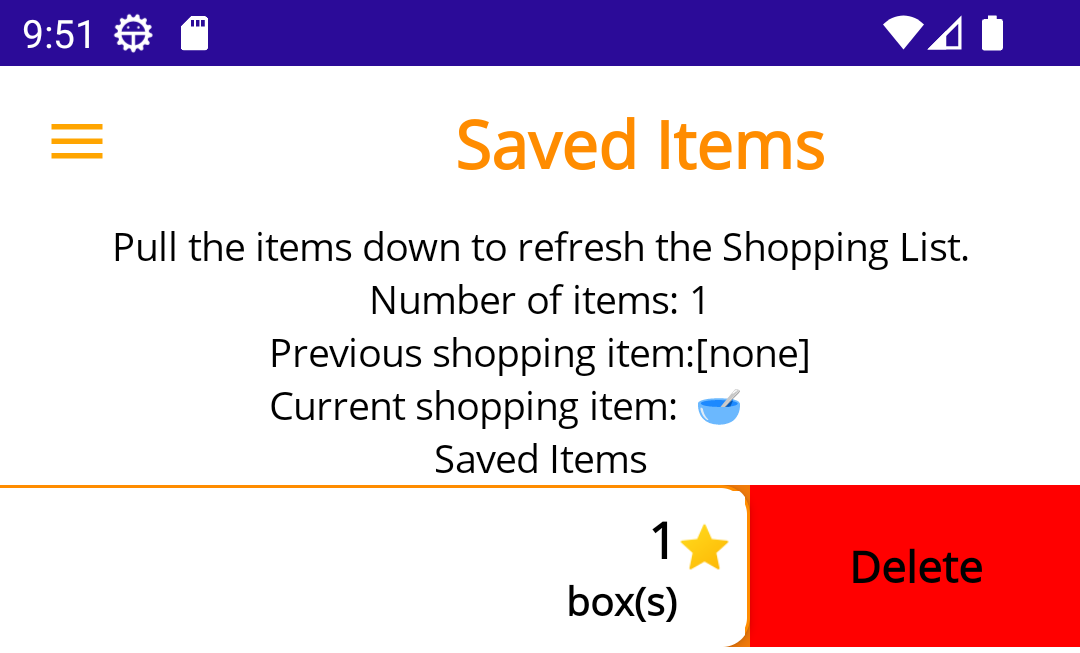
When an item is no longer required, delete it permanently from your mobile local storage.
Settings
Delete All Saved Items
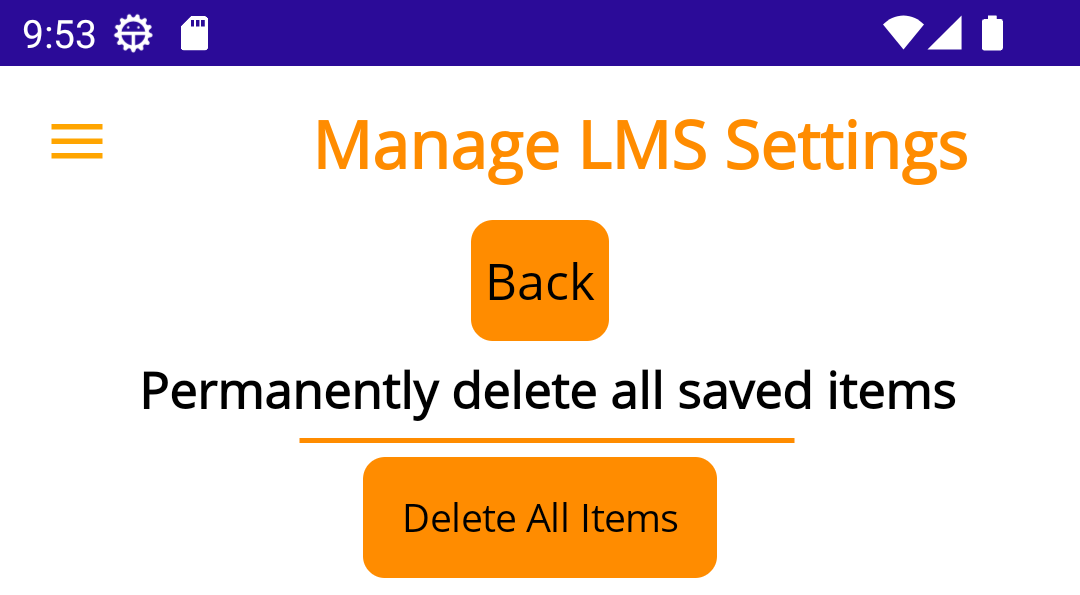
Use this option in app settings to clear all saved shopping records and start fresh with default items.